



A favicon is a small square image measuring 16 by 16 pixels. It gives your blog a unique branding. With a favicon, your blog will stand out from the crowd and you can make people easily remember your blog. A favicon is usually displayed to the left of the address bar next to the url. On the bookmarks drop down list, it will appear to the left of a site’s name.

You can choose your favicon to be of .Gif or .Png format but usually favicons are of .ico type. Don’t panic. You have places to make all these files.
Creating your favicon:
First of all, to generate a favicon you need a basic image file. You can either choose simple texts, in which case “Paint” is enough to make one. You can write fancy letters in fancy colours and effects to make your favicon.
If you choose to include images, I mean pictures, you have to either use existing images that are not copyrighted or build your own image from scratch (in which case, Photoshop does well). In any case make a 16 by 16 square image.
Once you have your jpg or gif or png file go to any one of the following websites to create your .ico file
www.favicongenerator.com/
tools.dynamicdrive.com/favicon/
favicon-generator.org/
www.favicon.cc/
In all the above websites you basically have to upload the favicon image file you created and then press “Generate” to get your favicon.ico file. You will have an option to “Download” your favicon.ico. Just download it and save it to your computer.
Now your favicon file is ready and you have to upload it somewhere and tell your blog to use it. Now we have to split into two different roads for WordPress and Blogger.
WordPress:
With a self-hosted WordPress blog, you simply have to upload the favicon.ico file to your root directory, that is your “public_html” folder. Now you have to find your header.php file and edit it. Paste the following line in your header.php file:
<link rel=”shortcut icon” href=”favicon.ico”>
Save your header.php file. Now if you refresh your browser, you should be able to see your favicon. If you don’t see it, try clearing the cache of your browser, restart your browser and load your blog.
Blogger:
With Blogger you always have the default Blogger favicon, the big B. Adding a favicon to Blogger blogs is most wanted because you can actually brand the free hosted Blogger blog with your own style. It gives the blog a more professional and unique look. And, along with the favicon if you purchase a decent domain (so that there is no .blogspot.com at the end), no one can easily find that yours is a Blogger blog.
So here we go:
Upload your favicon .ico file in any one of the following hosts that support .ico files:
1. http://www.110mb.com/
2. http://www.picpanda.com/
Then you have to tell Blogger to use that file. For that go to Design -> Edit HTML and check the “Expand widget templates” box. Now press ctrl+F to find </head>. Immediately before the head closing line paste the following:
<link href=’YOUR-FAVICON-URL‘ rel=’shortcut icon’/>
<link href=’YOUR-FAVICON-URL‘ rel=’icon’/>
Don’t forget to change YOUR-FAVICON-URL to the url where you just hosted your favicon. All set. Refresh your blog and you should see your favicon. If you use IE 6 or earlier version, bookmark your blog and restart your browser. You should be able to see the changes.
Adding favicon to WordPress Thesis Theme:

It won’t be fair if I don’t mention how to add favicon to WordPress Thesis theme, since Find All Answers runs on the Thesis Theme. And, I am a big fan of Thesis, believe me, it is the coolest framework. And, WordPress+Thesis=Awesomeness.
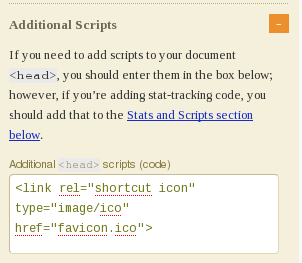
With Thesis, go to “Thesis” on the sidebar of your WordPress Admin panel. Under that go to “Site options” and expand the “Additional Scripts”. Just paste the following in that box:
<link rel=”shortcut icon” type=”image/ico” href=”favicon.ico”>
Click on the Big Ass Save Button and you are done.
For both the above cases, that is Blogger and WordPress, this is a one time addition. If you want to change your favicon, you don’t have to meddle with the code. You simply redo the favicon creation step and upload your new favicon.ico file. That’s it.
Hope this piece of writing will be of use to you. If you have a favicon installed in your blog please leave your link in the comments. I’ll be glad to have a look.
|
Like this post? Share it!
|
Get Free Updates & Ebooks
|
||||
|

Article by JaneSheeba
+Jane is the founder of Problogging Success. She is an expert blogger, consultant, freelance writer and blog designer. Don't forget to get your hands on two FREE Ebooks she offers.
Jane has written 264 awesome posts for Problogging Success.










{ 11 comments… read them below or add one }
How to Add a Custom Favicon to your WordPress or Blogger Blog?: A favicon is a small square image measuring 16 b… http://bit.ly/g6lm9e
How to Add a Custom Favicon to your WordPress or Blogger Blog? http://t.co/Jio03o7
To the best of my recollection, I used Dynamic Drive tool to create my blog’s first favicon.
Nice tutorial Jane.!
S.Pradeep Kumar recently posted..Wipro RCTG Survey- Win A Free Social Media White Paper
Haha, I too used that
Oh this is great. Making this for your site is a helpful one. Well, when you have favicon, people can remember you and know you more.
Ron from Electricians Isleworth recently posted..Electricians Isleworth – Reasons to Hire Licensed Electricians
hello dear,
I would like to have that. But i dont know how to add at html. how to know the url of my icon? you mean i just need to copy and paste the url of the icon I choose using the website that you proposed? plas. lemme know…pls. pls.
Hi missy,
I have updated the post with two hosts that support .ico files where you can upload your favicon. After you have uploaded you will be given a link to your file by those hosts. Just copy the link and paste it in place of YOUR-FAVICON-URL. Hope this helps.
I’ll be glad to check out how you did
Jane.
Hi Jane Sheeba,
Very nice info, I have used almost all the favicon generators and my first one was from dynamic drive, but presently I use firework to design and create a favicon..
Nice Share

-Imran
Imran recently posted..The Social Network Wins Big at Golden Globes 2011
wow - never even knew what a favicon was before this. I’m going to install it on my site, now im aware of it, every site i vist seems to have one!
Asian Tv recently posted..Watch Chhoti Si Zindagi 20th May 2011
thank you for the nice tutorial.
btw the new option by blogger for adding a personalized favicon is easier to implement. check it out http://bit.ly/m4iVx2
Awesome! works like magic, its currently working well on my site using your updated code but it seems to only work in Firefox and not in IE. How wonderful it would be to see an update to this tutorial that also works in IE. In any case, I pass the full credit to you for sharing this. All the best.