Thesis is the awesome theme which lets you make your website or blog look just as you want it to be. You can do lots of customization with this theme without having to do much coding. There are awesome stuff called “hooks” in thesis which makes you put an entity anywhere you want it on the blog.
In this post I compile 5 cool thesis customization tips that are must haves. Make use of them; it all depends on how you want your blog to look like.

1. Full Width Navigation Bar Above/Below Header:
In order to go to full width framework, you have to first opt for that. Go to Thesis -> Design Options. Under Site Layout, expand HTML Framework and select Full-Width Framework in that. Next, paste the following code in your custom_functions.php file:
function full_width_nav() { ?>
remove_action(‘thesis_hook_before_header’, ‘thesis_nav_menu’);
add_action(‘thesis_hook_before_html’, ‘full_width_nav’);
For styling the navigation bar, paste the following code to custom.css file:
/***Nav Bar Style***/

.custom #nav_area {background: #5A0A0A;}

.custom ul.menu {background: #5A0A0A; border:none;}

.custom ul.menu li a, .custom ul.menu li a:hover {background:none; border:none;}

.custom ul.menu li a {color: #fff; font-size: 1.2em; font-family: "Myriad Pro",Helvetica,Arial,sans-serif; font-size: 12px; font-weight:normal;}

.custom ul.menu li.current a:hover, .custom ul.menu li a:hover {color:#DDC359;}

.custom ul.menu li.current a, .custom ul.menu li.current-cat a {color:#DDC359;}

.custom ul.menu li a:hover {color:#DDC359; text-decoration:none;}

.custom ul.menu li li {background: #A61212; margin-top:1px;}

.custom ul.menu li li a:hover {background: none;}

.custom ul.menu li li:hover {background: #5A0A0A;}

.custom ul.menu .rss {border: none;}.custom ul.menu .rss a, .custom ul.menu .rss a:hover {padding-right: 16px;}

/***End Nav Bar Style***/
Don’t forget to change the appropriate colors to match your theme.
2. Custom Header Ad:
You can place a 468X60 banner ad towards the right side of the header as you see in this blog.
For that, you have to place the following code in custom_functions.php:
function my_header_ad() { ?>

add_action(‘thesis_hook_header’, ‘my_header_ad’);
Apply the following styling to you header ad (paste in custom.css):
.custom #leaderboard_ad { float: right; position: absolute; width: 468px; height: 60px; top: 30px; left: 550px; }
3. Custom Category Navigation Bar below Header:
If it is quite important for you to display categories in the homepage at a prominent place, a secondary nav bar is the right choice. Here’s how to add it.
Paste the following code in custom_functions.php
function fullwidth_cat_nav() { ?>
add_action(‘thesis_hook_before_content_area’, ‘fullwidth_cat_nav’);
Style your category nav bar using the following code (paste in custom.css)
/*** Begin Category Navbar Style ***/
/* Initialize the menu */
.custom #cat_menu li {
height: 25px;
position: relative;
float: left;
list-style: none;
margin: 0;
padding: 0;
margin: 0;
padding: 0;
font-weight: normal;
font-size: 12px;
letter-spacing: .05em;
text-transform: uppercase;
}
.custom #cat_menu, #cat_menu li a {
background: #5A0A0A url("images/bg_main_menu.gif") repeat-x scroll 0 0;
border: none;
height: 30px;
}
.custom #cat_menu li a {
display: block;
padding: 0 15px 0 15px;
margin: 0;
text-decoration: none;
text-align: left;
line-height: 30px;
color: #FFFFFF;
}
.custom #cat_menu li a:hover{
background: #5A0A0A;
color: #FFFFFF;
}
.custom #cat_menu li ul {
position: absolute;
visibility: hidden;
}
.custom #cat_menu li:hover ul, #cat_menu li:hover ul a {
visibility:visible;
background: #5A0A0A;
width: 140px;
text-align: left;
font-size: 10px;
}
/*** End Category Navbar Style ***/
Again, you may have to play with the colors.
4. Change Page and Category Order in Nav Bar:
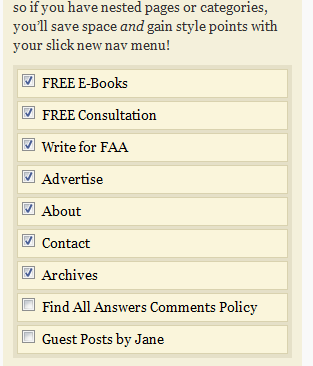
You may want to change the order in which the pages and categories appear in the navbar. Page order can be easily changed from the WordPress admin. Go to Thesis Site Options -> Navigation Menu. You can now drag the pages up and down by pressing and holding the mouse over any particular page. You can also edit the names of the pages in that list (this is cool).
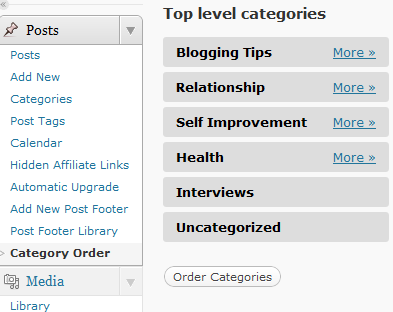
To change the category order in the custom category navigation bar you have to install a plugin called category order. Then under Posts you will see Category Order. Click that and you can drag and drop the categories in any order. You can change the order of the sub-categories also by clicking the more button.
5. Facebook Like Button Before Post
In order to add a Facebook Like button just after the post heading and before the post content, you need to paste the following code into custom_functions.php file:
function facebook_like_button(){

global $post;

?>


  }

add_action('thesis_hook_before_post','facebook_like_button');
Let me know how things work for you. If you have any questions or comments, I am glad to hear and answer.
What? You haven’t got Thesis Theme yet? Click here to get this rocking theme and rock the blogosphere! Find All Answers runs on this awesome theme.


 How To Add A Widgetized Footer In Thesis WordPress Blog?
 6 Ways To Capture Ideas Effectively
 Top Internet And Marketing Blogs To Follow
Nice tips Sheeba. I am also planning to change to thesis, will be very helpful:) Thanks
I highly recommend Thesis Vikram. You will not regret the expense and it is the best framework that integrates many vital things so that you don’t have to worry about optimizing your blog and can simply concentrate on producing quality content.
Jane.
Thanks Jane for this awesome tutorial session. I will post my problems concerning this here. I need to practice what You teach here.
thanks for this tutorial Jane. I am always looking to learn more about thesis and How I can use it better.
I’m also thinking to move to Thesis. Currently using a theme from Elegant Themes. Last week I won a Thesis theme from a contest. Thanks to SmashinGeeks for that. Now customizing it…
That’s great to hear Sumon. You must be enjoying the experience with Thesis.
Jane.
Thanks for sharing that nice tutorial…Thesis is one of the best theme which is recommended for Better SEO
This tutorial is big help for me and for students who has this. I love costumised blogs. it is and addition for attracting people. Great!
very nice tips sheeba. I am also planning to shift to Thesis. my present theme is very slow and buggy.
Thank you so much for sharing such great tips
Sheeba, you are so very good in implementing ideas. Any topic will be absolutely good reading source! good Job!
Hi..
Thanks for sharing this information and resources its really help full for me with the help of this we can improve our design & development, and get a new look of my website. great job i am really inspire with this artical so thanks
Web Design Company India
Wow… Thanks a lot for sharing this! I’ll make sure to bookmark this page. Very useful!
Thanks for your tips, Jane! Thesis is a great and very customizable theme!
Joao says
Hi Jane,
First of all, thanks for the helpful tips.
I followed your instructions on tip 3 Custom Category Navigation Bar below Header, but the category menu is not showing.
I’m sure I just missed something. Can you have a quick look please?
Test site: ptpixel.com
Thanks in advance,
Joao
H Joao I just checked your site and am able to view the category nav bar. Seems you’ve figured it out!
Joao says
Yes jane, I did figured it out
It was an issue with the code, but I managed to solve it after some more research.
Anyway, thanks for your answer!
Joao
Thesis is really an awesome theme which is also quite easy to work with. The tips you have shared on this post will be of great help to those interested in the theme or those who are already using it but want to make some changes.
ken says
i need your help, need to improve my thesis site’s appearance, please email me back
Hey there Jane Sheeba I really liked your great blog post on Full Width Header. Great job and great blog. I cant wait to read more, keep em comin!
Thanks Jane for the codes, step-by-step! I’ve been wanting to try this out for awhile, and so far everything is working and looking good. The custom css for the category menu was a little tricky to copy, the window is very narrow, just to let you know.
Thanks again, Mark
Hey Mark sorry about making copying challenging I’ve fixed that now; please check if you’ve copied everything correctly
Thanks Jane,
I copied from
Category Navbar Style ***/ to
/*** End Category Navbar Style ***/
Thanks for your tutorial, it’s awesome!
Happy Customer
Hi Jane,
I have a css question for the drop-downs in the nav menu (pages). The titles for some of my pages are long, and the text is going outside of the background. I’m not sure what css to use to correct this. Could you take a look and offer a solution for me? Here’s a link to this site vannerpowerinverter.com
Thank You, Mark
Mark I just visited your site and seems you’ve fixed things. Let me know if I’ve overlooked!
Jane,
the child page Coach AC POWER for Markets (parent) runs off, and
Post Production Manuals (c) for Markets (p) also.
Mark
Daniel says
Hi,
How can i style my category menu on my site ?
Nice customization tips but it would be great if you also post Genesis customization tips also.
Great post,Sheeba!This type of clever work and exposure!I find here good tips.
Keep up the amazing works.